

How to Send Invite-Only Shift Requests on MyShyft
Work with the healthcare professionals you already know and trust. MyShyft makes it easy to privately invite professionals who have previously worked at your facility, helping you coordinate upcoming shifts with familiar caregivers. Your invited professional can accept or decline each invitation.
New to MyShyft? Learn more about how MyShyft works for healthcare facilities, including posting shifts, selecting caregivers, and managing your staffing needs.
Step 1: Post a New Shift
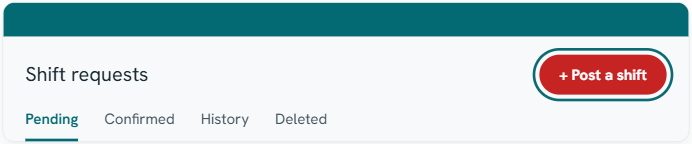
Go to Shift requests and select + Post a shift.
Step 2: Complete the Required Shift Details
Enter the required fields, including shift type, shift times, and licenses. These details must be completed before you can use the Invite Caregiver option.
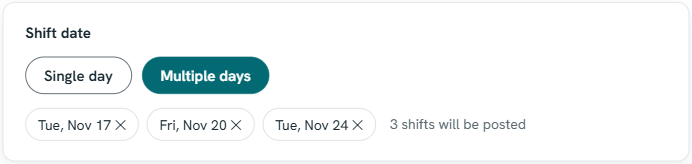
Step 3: Choose One Day or Multiple Days
Select Single day for one shift or Multiple days to privately invite the same healthcare professional to shifts on several agreed-upon dates.
Step 4: Select a Healthcare Professional to Invite
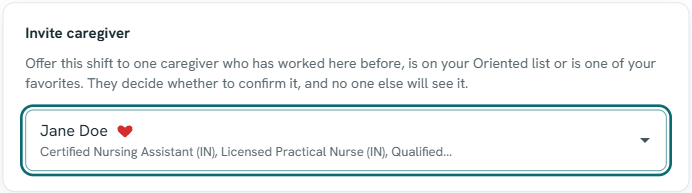
Open the Invite caregiver dropdown and select one worker. Your facility favorites appear first, followed by other eligible healthcare professionals who have worked at your facility before.
Want to build a reliable pool of preferred workers? Learn how ratings and reviews help you identify healthcare professionals you’d like to invite back.
Step 5: Post the Shift and Follow Up
Select Post the shift. The invited healthcare professional will receive a notification and can accept or decline the invitation.
Do not add the worker to your schedule until they have confirmed the shift.
Important: An Invitation Is Not a Confirmation
Confirm availability with your preferred worker before sending an invitation. If the worker declines or does not accept, you will need to repost the shift as an open shift so other healthcare professionals can apply.
Need to Fill an Open Shift Instead?
Use Favorites to give your preferred healthcare professionals priority access to available shifts rather than sending a private invitation.
More MyShyft Resources for Facilities
Explore more helpful resources in our Learning Hub, or visit our FAQs for answers to common questions about using MyShyft.
Questions? Contact [email protected].